MagickVoice Help Center — Voice
SIP Connections
Connect an approved SIP trunk so MagickVoice can place outbound calls through your carrier, using either SIP credentials or an IP allowlist.
Audience: Telephony administrators · Page address: /app/sip/connections
Common tasks
- Add a SIP connection
- Enter the trunk domain
- Choose credentials or IP allowlist
- Allow MagickVoice egress IPs
How to use this page
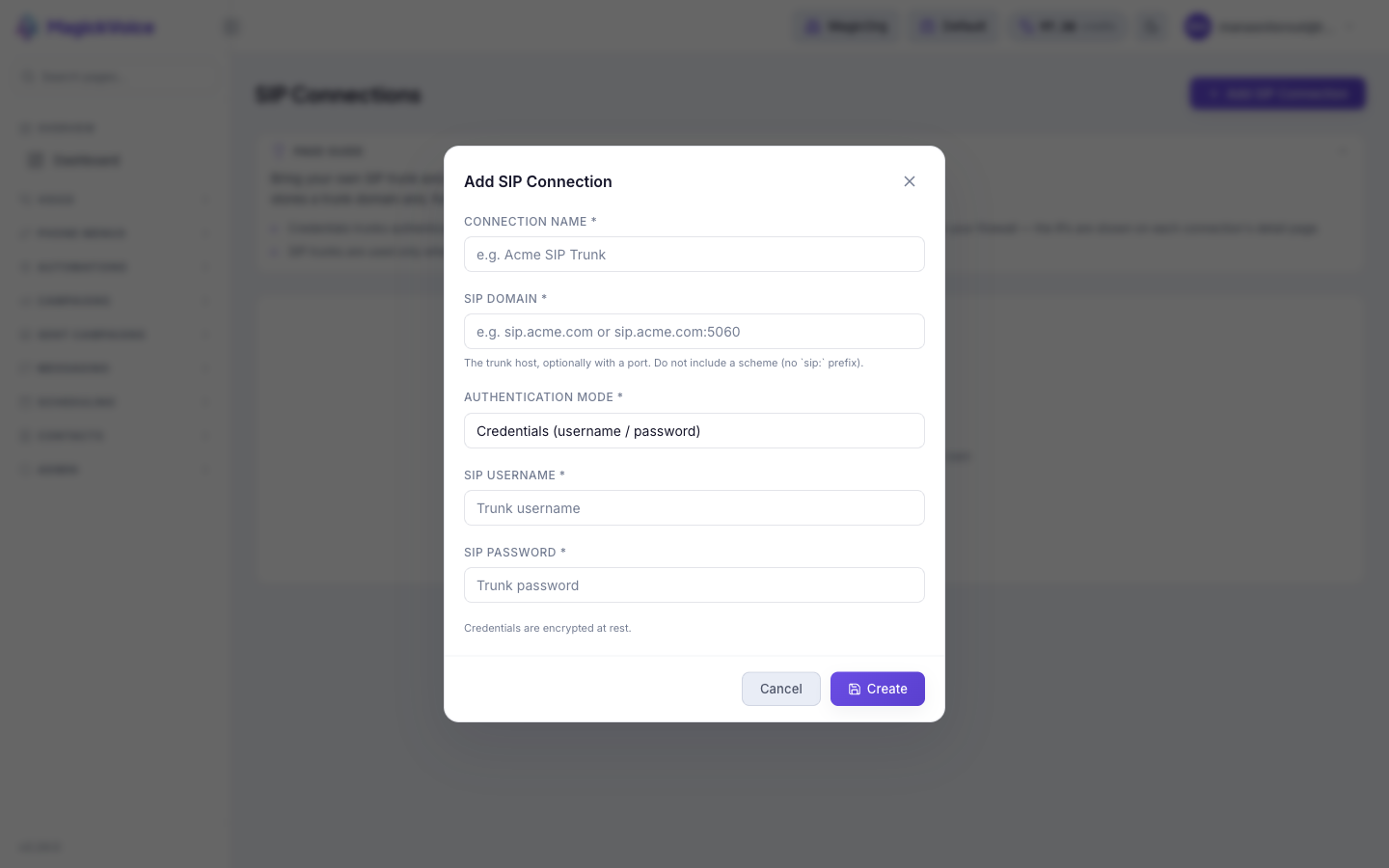
1. Add a credential-based SIP trunk
Save the connection details supplied by a carrier that authenticates with a SIP username and password.
- Open Voice, then SIP Connections, and select Add SIP Connection.
- Enter a clear Connection Name, such as the carrier name and intended environment, so users can recognize it later.
- Enter the SIP Domain exactly as provided by the carrier. Include a port only when one is required, but do not include the sip: prefix.
- Leave Credentials selected, then enter the SIP username and SIP password from the carrier. The form notes that credentials are encrypted at rest.
- Review the values and create the connection. Use it first with a controlled test call before routing operational calling through it.
2. Use IP allowlisting instead
Connect a trunk that trusts MagickVoice network addresses rather than a SIP username and password.
- Enter the connection name and SIP domain as above, then select IP whitelist as the authentication mode.
- Create the connection without entering credentials.
- Open the saved connection’s detail page and find the Egress IPs to Whitelist section. If the addresses are listed, copy them; if the section says they are not available yet, contact support to obtain them.
- Allow those addresses on the SIP trunk or firewall with your carrier. Calls cannot authenticate until the carrier-side allowlist is in place.
3. Review or remove an existing connection
Manage the trunks already saved in the workspace.
- Once connections exist, the page lists them in a table with Name, SIP Domain, Auth Mode, Calls Placed, Test result, Status, and Created date.
- Select a row to open its detail page, or use the row’s Edit control to change its settings.
- Use Revoke to take a trunk out of service. A confirmation warns that calls relying on it will fail, so confirm only when nothing live depends on that route.
Tips and troubleshooting
- Open the detail page after a call to review transcript, outcome, recording, and follow-up options in one place.
- When comparing calls, use status and date filters first, then open only the calls that need action.
- A SIP connection can direct outbound call traffic through your carrier. Coordinate ownership and testing with the person who manages the carrier account before saving production settings.
- If the carrier gives a hostname with a non-standard port, include the port after the hostname, for example sip.example.com:5060.
- Use a distinct connection name for sandbox and production trunks so the correct route is obvious during call setup.
- SIP trunks are used only when the effective telephony provider supports them (VoBiz). If your workspace is on another provider, a saved connection will not carry calls until that provider is in effect.