MagickVoice Help Center — Voice
Dialer
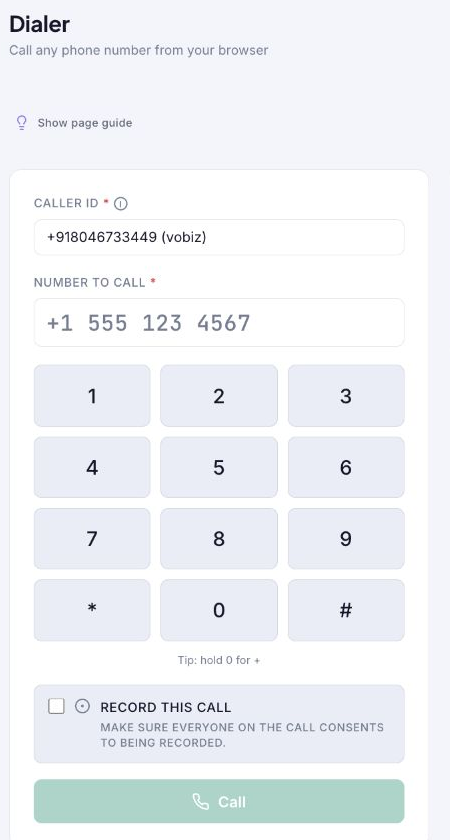
Call a phone number directly from the browser by selecting an approved caller ID, entering a full phone number, and acknowledging recording consent when needed.
Audience: WebRTC dialer users · Page address: /app/calls/dialer · Your admin may need to enable this feature
Common tasks
- Select a caller ID
- Enter or key in a full number
- Choose whether to record
- Place a browser call
How to use this page
1. Place a browser-dialer call
Call a number from the browser with the correct visible caller ID.
- Open Voice, then Dialer. Use Call history in the page header when you need previous browser-dialer records instead.
- Choose Caller ID. This is the active workspace number the recipient will see; only available tenant numbers appear in the selector.
- Enter Number to call with the country code. You can type it directly or use the keypad. Hold 0 on the keypad to enter a plus sign.
- Select Record this call only if recording is appropriate. The page explicitly reminds you to make sure everyone on the call consents to being recorded.
- Review the caller ID and recipient number, then select Call. The call button remains unavailable until the required information is present.
Tips and troubleshooting
- Open the detail page after a call to review transcript, outcome, recording, and follow-up options in one place.
- When comparing calls, use status and date filters first, then open only the calls that need action.
- The Credits panel shows the available workspace balance and the approximate per-minute talk-time rate. Confirm there is enough balance before a longer call.
- Use a complete international number. The dialer accepts the number you intend to reach, not a contact name.