MagickVoice Help Center — Voice
Call detail
Open a completed AI call or dialer call from Calls to review its delivery facts, recording, AI-generated outcome analysis, and turn-by-turn transcript before deciding on a follow-up.
Audience: Voice operators and managers · Page address: /app/calls/:id

Common tasks
- Review delivery facts
- Play or download a permitted recording
- Interpret call analysis
- Read the transcript
- Choose a follow-up
How to use this page
1. Open the right call and confirm the delivery facts
Establish what happened before relying on interpretation or taking another action.
- In Voice, open Calls. Narrow the list by status, direction, provider, pipeline, exact phone number, or batch ID until the correct record is visible.
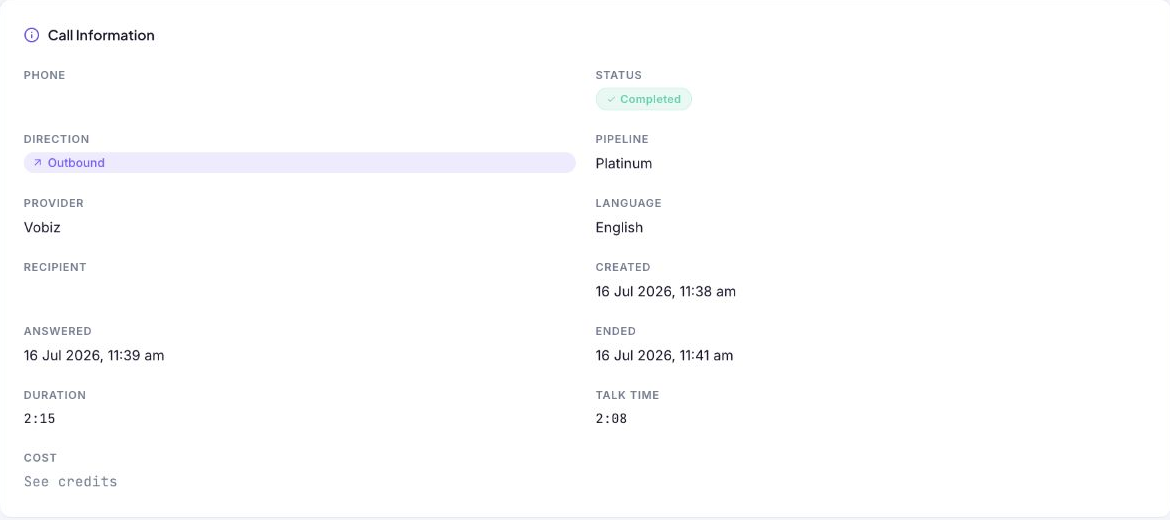
- Select the call row to open Call Detail. Start at Call Information rather than jumping straight to the transcript.
- Check Phone and Recipient to confirm that this is the correct person. These values are customer data, so do not copy them into an unapproved channel.
- Read Status and its plain-language outcome first. Then use Direction, Pipeline, Provider, and Language to understand how the call was routed and configured.
- Compare Created, Answered, and Ended with Duration and Talk Time. Duration covers the complete call lifecycle; talk time reflects the connected conversation portion.
- Use See credits when you need to investigate the cost associated with the call. If Template Variables appear below the facts, they show the values that were inserted into the script for this recipient.
2. Review a recording responsibly
Verify the actual audio without exposing call content unnecessarily.
- Scroll to Recording. When a recording exists, use Play, the elapsed-time display, waveform, and volume control to review the audio in place.
- Use the player to check material questions such as whether the call connected clearly, whether a hand-off was understood, or whether the transcript reflects what was said.
- Use Download only when you are authorized to retain a local copy. The recording can contain personal and commercially sensitive information.
- If no recording is shown, check whether recording was enabled for the call and whether your role is allowed to view it before assuming the call failed.
3. Understand the generated call analysis
Use the analysis as a fast review aid while keeping human judgement in the decision loop.
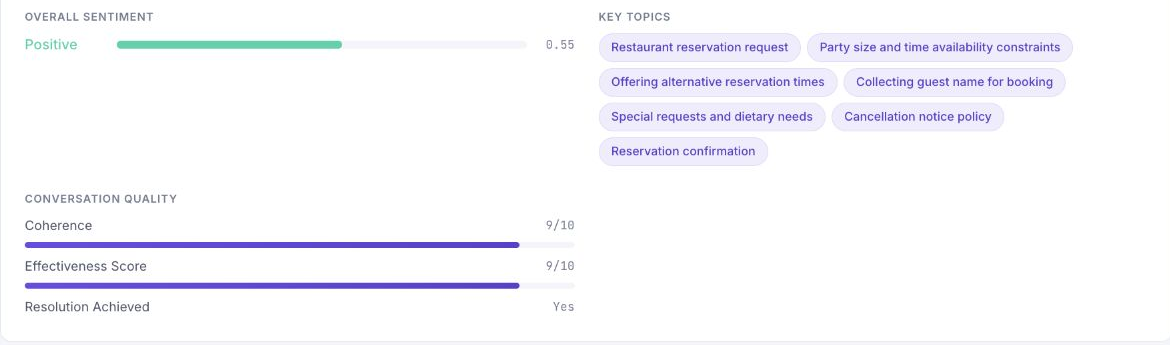
- Scroll to Call Analysis. Read the generated summary first to understand the stated request, response, and apparent outcome without replaying the entire call.
- Use Overall Sentiment and its score as a directional signal for the conversation tone. A score is not a customer commitment and should not be used by itself to trigger a high-impact action.
- Review Key Topics to see the issues or requests detected in the call. Use them to route the record to the right team or to check whether a required subject was covered.
- Use Conversation Quality to compare Coherence and Effectiveness Score on their 10-point scales. Resolution Achieved indicates whether the analysis judged the stated objective to be met.
- Open the recording or transcript when a score, topic, or summary does not match the operational outcome you expect.
4. Read the transcript and take a follow-up action
Confirm the details that matter and continue the customer relationship in context.
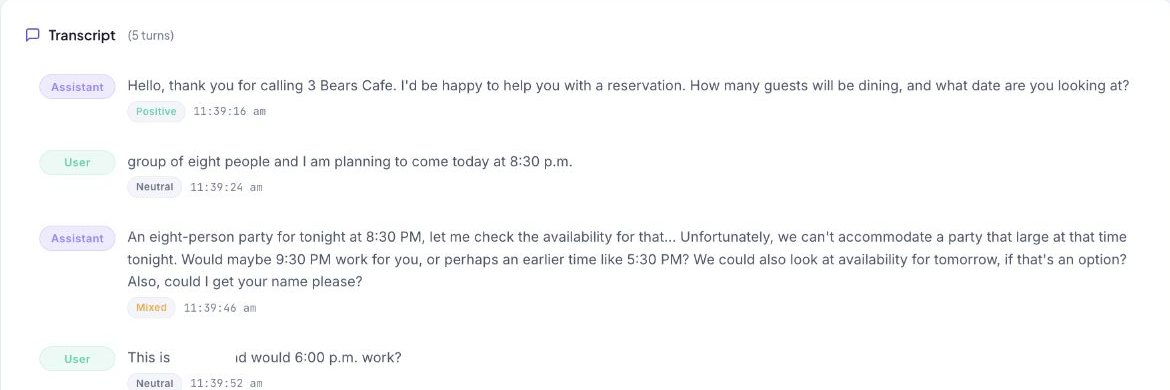
- Continue to Transcript. Each entry is labelled Assistant or User, includes a timestamp, and shows the sentiment detected for that turn.
- Read in sequence to distinguish an explicit agreement from a question, a proposed alternative, or an unresolved objection. Use the recording when exact wording or tone matters.
- Compare the final transcript turn with Resolution Achieved before marking work complete or starting another contact attempt.
- Use Follow up at the top of the page only after reviewing the record. Choose the available conversation action that matches the confirmed outcome rather than creating a duplicate interaction.
Tips and troubleshooting
- Open the detail page after a call to review transcript, outcome, recording, and follow-up options in one place.
- When comparing calls, use status and date filters first, then open only the calls that need action.
- Analysis, sentiment, and transcripts are generated aids. Check the recording or the operational facts before making a consequential customer, billing, or compliance decision.
- A completed call can still have a short talk time. Compare the timestamps, duration, recording, and transcript before deciding that the objective was achieved.
- Treat recordings, transcripts, template values, and contact information as customer data. Follow your organization’s retention, export, and access rules.
- If a call failed or did not answer, use the delivery facts to check the number, caller ID, provider, and final outcome before retrying.