MagickVoice Help Center — Voice
New call
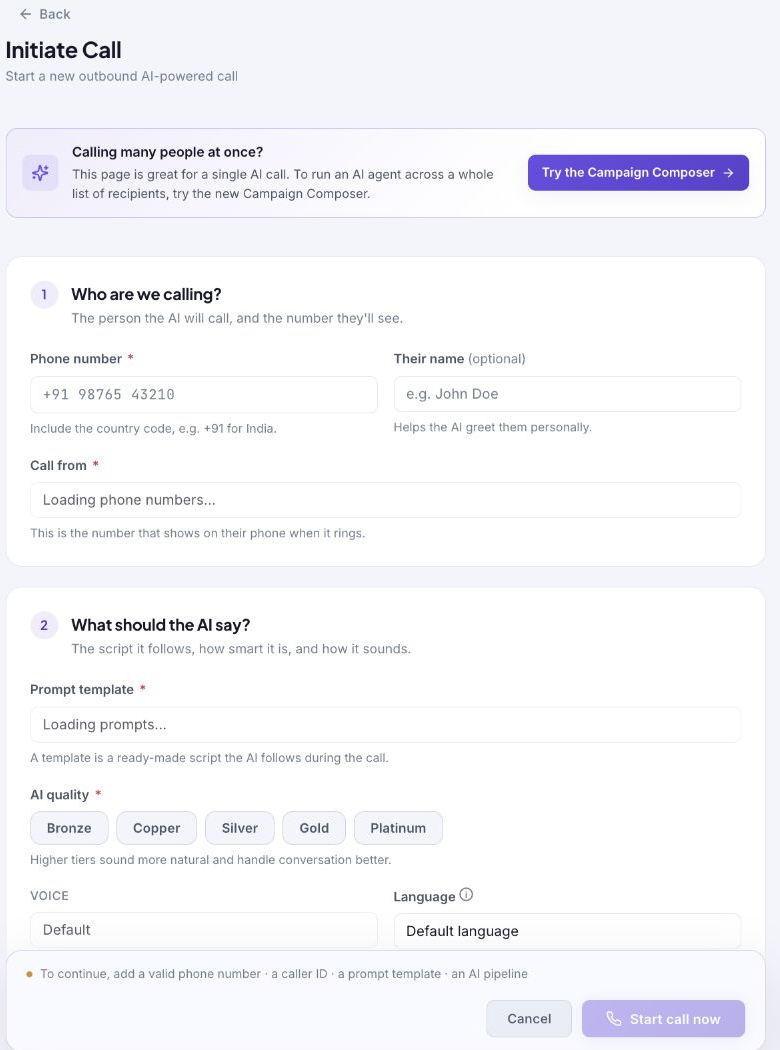
Configure and launch one outbound AI call with the recipient, caller ID, script, quality, recording, and scheduling controls in one guided form.
Audience: Voice operators · Page address: /app/calls/new
Common tasks
- Enter the recipient
- Choose the displayed caller ID
- Select the script and AI quality
- Schedule or start one call
How to use this page
1. Set up a single AI call
Provide the information the AI needs to call the right person from the right number.
- In Who are we calling?, enter Phone number with the country code, for example +91 for India. This field is required.
- Optionally enter Their name. It helps the AI greet the recipient more personally.
- Choose Call from. This is the MagickVoice number the recipient sees when the phone rings. If the selector is still loading, wait for the workspace phone numbers to load rather than entering a number manually.
- Under What should the AI say?, choose a Prompt template. A template is the reusable script that directs the AI during the conversation.
- Choose the AI quality that matches the conversation. Higher tiers are described on screen as more natural and better at handling conversation. Then choose a Voice after selecting a quality tier.
2. Choose call behavior and launch time
Make the one-off call with the intended safeguards.
- Select a Language only when the prompt is configured to use it. Selecting a language makes it available, but the prompt instructions must explicitly tell the agent to speak that language.
- Leave Record this call on when you need an audio copy for review. The screen notes that recording has a small additional charge.
- Turn on Detect answering machines when voicemail detection is useful. Use Attach automations or Advanced settings only when your workflow requires them; advanced settings are for reference ID and developer options.
- Choose Send Now to place the call after review, or Schedule for Later to choose a future date and time.
- Read the helper line above the action buttons. It lists every missing requirement. Start call now becomes available only after valid phone number, caller ID, prompt template, and AI pipeline are set.
Tips and troubleshooting
- Open the detail page after a call to review transcript, outcome, recording, and follow-up options in one place.
- When comparing calls, use status and date filters first, then open only the calls that need action.
- Use this page for one recipient. For a group of recipients, select Try the Campaign Composer instead of repeating individual calls.
- Cancel leaves the setup screen without placing a call. Starting a call is an external action, so review the caller ID, recipient, and script together before selecting it.