MagickVoice Help Center — Voice
SIP connection detail
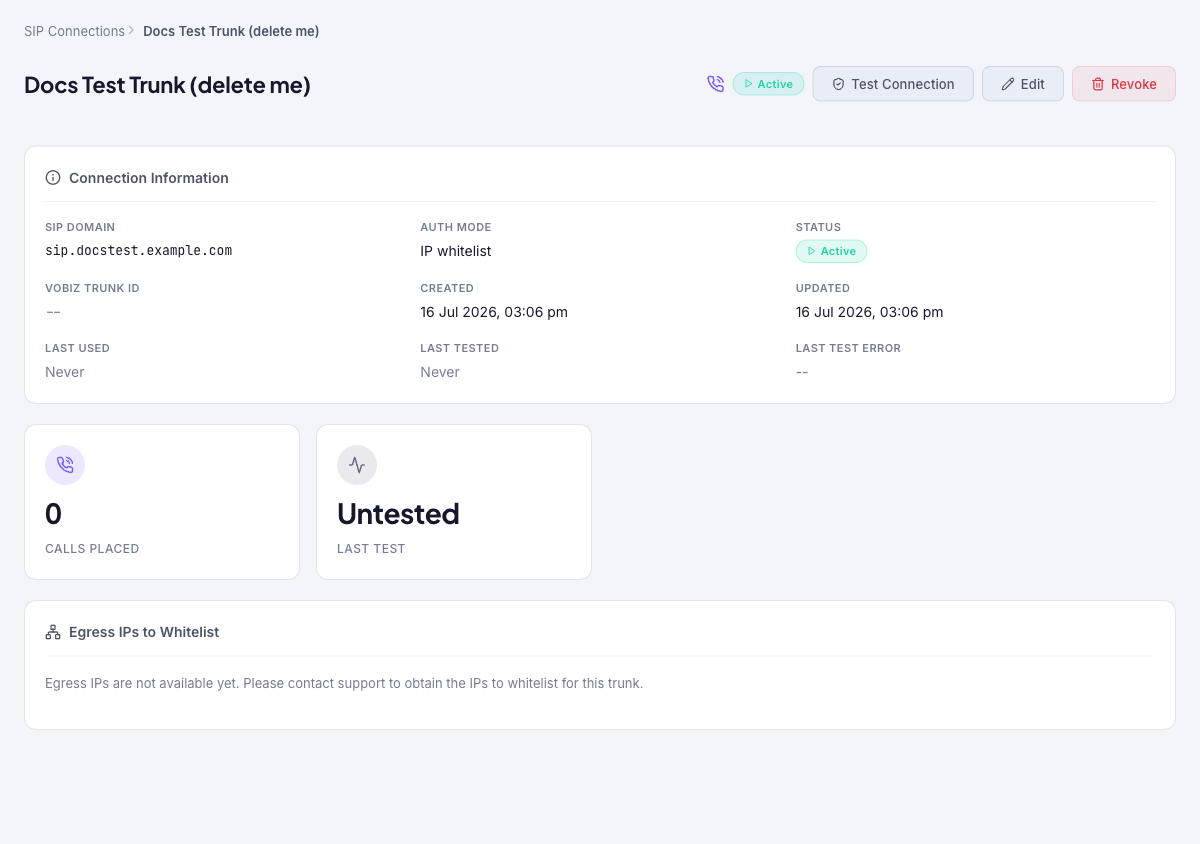
Inspect one SIP connection: its domain and authentication mode, status and usage, the egress IPs to allowlist for IP-whitelist trunks, and the controls to test, edit, or revoke it.
Audience: Telephony admins · Page address: /app/sip/connections/:id · Your admin may need to enable this feature
Common tasks
- Review connection information and status
- Copy the egress IPs to allowlist
- Test the connection
- Edit or revoke the connection
How to use this page
1. Review and verify a SIP connection
Confirm a trunk is configured correctly and ready to carry calls.
- Open Voice, then SIP Connections, and select the connection row. The detail page opens with a breadcrumb back to the list and the connection name and status in the header.
- Check Connection Information for the SIP Domain, Auth Mode, Status, VoBiz Trunk ID, and the Created, Updated, Last Used, Last Tested, and Last Test Error values. The cards below summarize Calls Placed and the Last Test result.
- For an IP-whitelist trunk, use Egress IPs to Whitelist to get the addresses to allow on your carrier’s SIP trunk or firewall. If it reads that IPs are not available yet, contact support to obtain them, as the note on the page instructs.
- Select Test Connection to run a connectivity check; the Last Tested and Last Test Error fields record the outcome. Run a test before routing production calls through the trunk.
2. Edit or revoke a connection
Change trunk details or take a trunk out of service safely.
- Select Edit to change the connection name, SIP domain, authentication mode, or credentials, then save.
- Select Revoke to take the trunk out of service. A confirmation dialog warns that calls relying on this trunk will fail, so confirm only when no live calling depends on it.
- Coordinate edits and revocation with the person who manages the carrier account, since both can interrupt outbound calling.
Tips and troubleshooting
- Open the detail page after a call to review transcript, outcome, recording, and follow-up options in one place.
- When comparing calls, use status and date filters first, then open only the calls that need action.
- Egress IPs are shown here rather than on the list page. For an IP-whitelist trunk, calls cannot authenticate until those addresses are allowed on the carrier side.
- Last Used and Last Tested help confirm whether a trunk is actually carrying traffic before you revoke or reconfigure it.
- Revoking a connection is disruptive, not a soft toggle — the confirmation states that dependent calls will fail, so treat it as taking the route offline.