MagickVoice Help Center — Automations
Automation detail
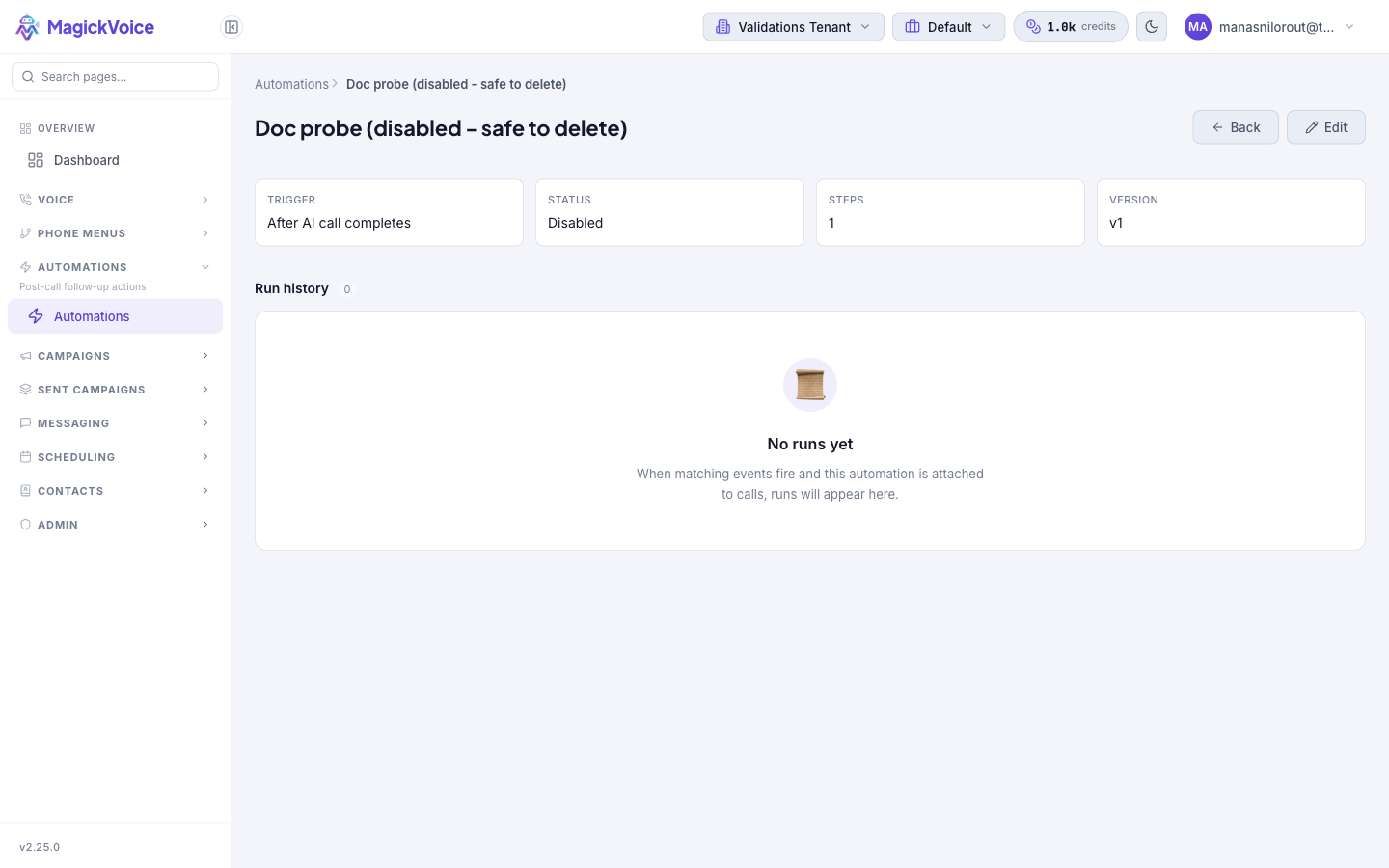
Review one automation at a glance — its trigger, status, step count, and version — and read its run history for evidence of what happened when it fired. The jump-off point to edit the flow.
Audience: Operations users · Page address: /app/automations/:id
Common tasks
- Check the trigger, status, steps, and version
- Read the run history
- Open a run for detail
- Edit the automation
How to use this page
1. Review an automation at a glance
Confirm what an automation is set to do without opening the full builder.
- Open the detail page by selecting an automation's row on the Automations list, or the Run history action on that row. The breadcrumb reads Automations > the automation name, and the name is the page title.
- Read the summary tiles: Trigger (the event it fires on, such as After AI call completes), Status (Enabled or Disabled), Steps (how many action steps it runs), and Version (for example v1).
- Confirm the tenant shown in the top bar matches where the calls happen — an automation only reacts to events within its own tenant.
- Use Back to return to the list, or Edit to open the flow in the builder.
2. Read the run history
Use the run history as evidence of what the automation actually did when events fired.
- Find the Run history section below the summary; the count beside it shows how many runs have been recorded.
- When the automation has not fired yet — because it is disabled, unattached, or no matching event has occurred — the section reads No runs yet, with a note that runs appear once matching events fire and the automation is attached to calls.
- Once runs exist, review them here to see whether each fired, matched its conditions, and sent — the same outcome the Dry-run preview estimates before enabling.
3. Decide what to do next
Move from reviewing to acting once you know the automation's state.
- Select Edit to change the trigger, conditions, or steps — see Create or edit an automation.
- To turn follow-ups on or off without losing the configuration, open it in the builder and toggle Status.
- Check that each message step still points at a live messaging connection if sends are unexpectedly failing.
Tips and troubleshooting
- Start with a narrow trigger, test it, then broaden conditions after confirming the first run behaves correctly.
- Use the run drawer or detail page when you need evidence of what happened during an automation run.