MagickVoice Help Center — Campaigns
Voice messages
Create and manage voice messages — a straight recorded or read-aloud message played to people when they answer your call, with no AI conversation. Type a message we read aloud, or upload your own recording, then send it to a list of numbers from the Campaign Composer.
Audience: Campaign creators · Page address: /app/announcements · Your admin may need to enable this feature
Common tasks
- Create a typed or recorded voice message
- Personalize the message with per-contact fields
- Review existing voice messages
- Select a voice message for a campaign
How to use this page
1. Understand what a voice message is
Know what this feature does before you build one, so you pick it only when a one-way message is what you want.
- A voice message is a recorded or typed-aloud message played to each person when they answer — there is no AI conversation, just a straight message, and the call ends after it plays.
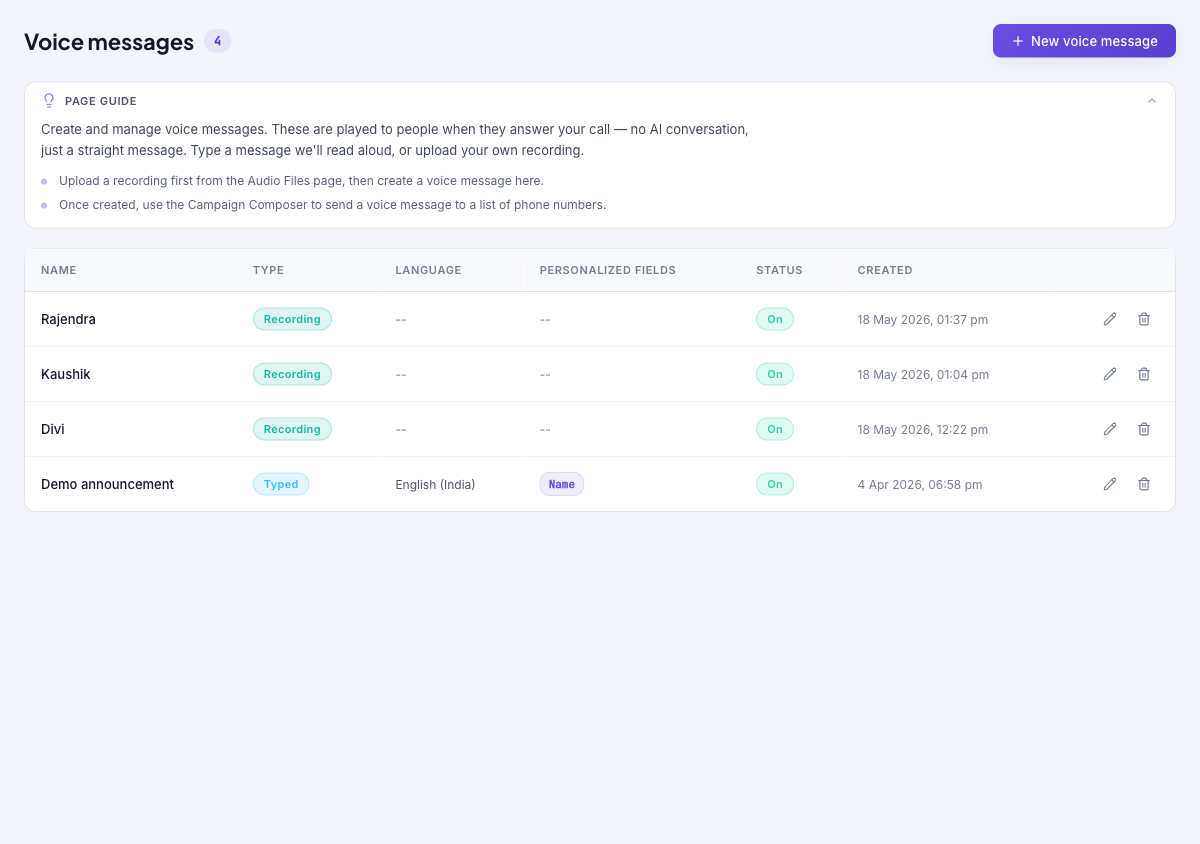
- There are two types: Typed (you write text and we read it aloud in a clear voice) and Recording (you upload your own audio file). The table's Type column shows which each one is.
- Once created, a voice message is sent to a list of phone numbers from the Campaign Composer — see New campaign. The message itself is reusable across many campaigns.
- Use the page guide at the top for a refresher, and Hide page guide to collapse it once you are familiar.
2. Review your voice messages
Keep track of what is set up before creating more or launching a campaign.
- Open Voice Messages from the sidebar. The table lists each message with its Name, Type (Typed or Recording), Language, Personalized fields, Status (On or off), and Created date.
- Confirm you are in the intended tenant (shown in the top bar) — voice messages belong to the tenant they were created in.
- Use Edit on a row to change a message, or Delete to remove one you no longer need.
3. Create a typed voice message
Write a message we read aloud — the fastest way to send an announcement without recording anything.
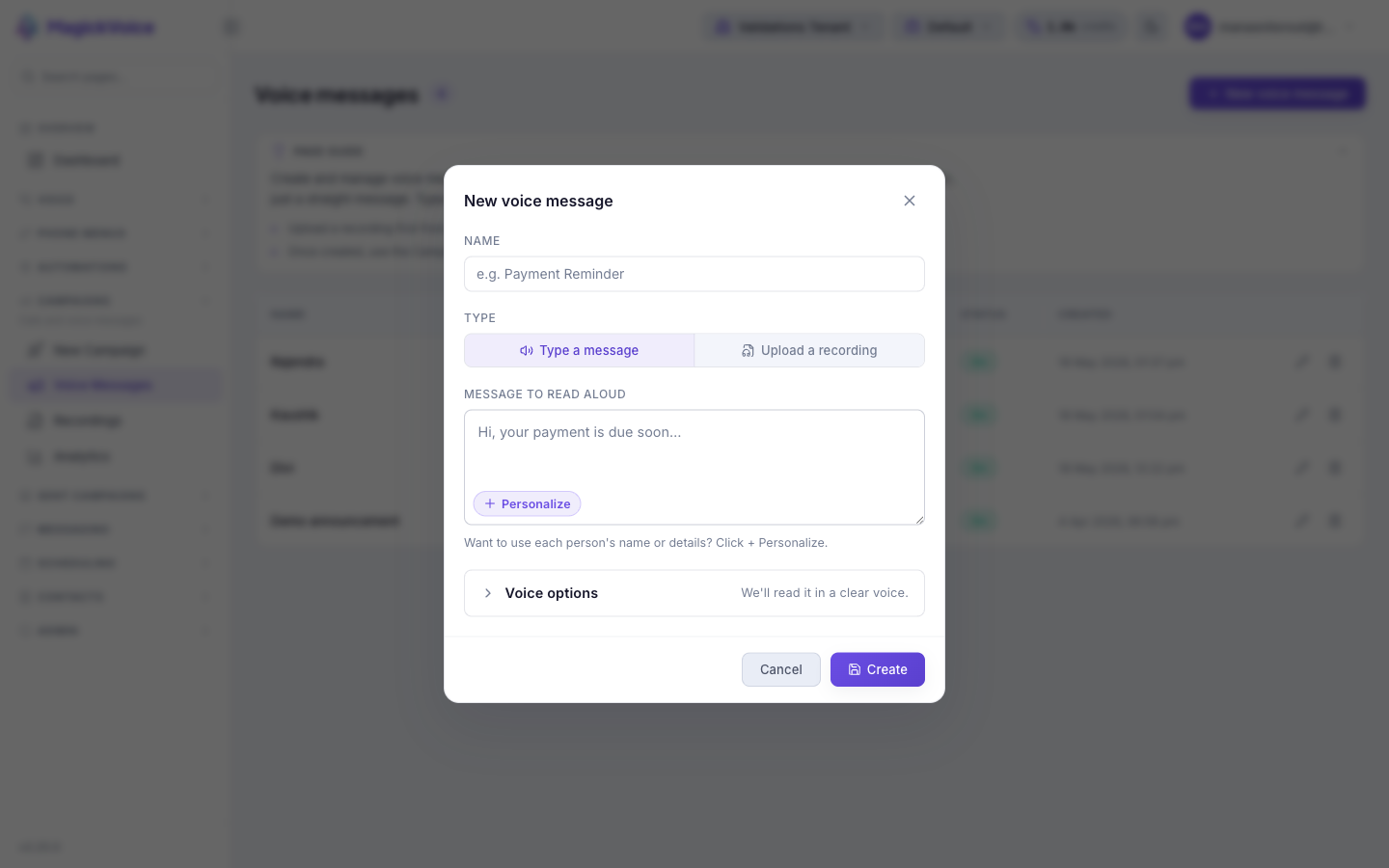
- Select New voice message. In the dialog, give it a Name (for example Payment reminder) so it is easy to find later.
- Leave Type on Type a message.
- In Message to read aloud, write what each person should hear. Keep it short and clear.
- To personalize it, select Personalize (or + Personalize) to insert a per-contact field such as the person's name — these are filled in for each recipient at send time from the campaign's contact data.
- Open Voice options to adjust how the message sounds if you want something other than the default clear voice.
- Select Create. The message appears in the list, ready to select in the Campaign Composer.
4. Create a voice message from a recording
Use your own audio when you have a professionally recorded or pre-approved message.
- First upload the audio on the Recordings page so it is available to attach.
- Select New voice message, name it, then choose Upload a recording under Type.
- Pick the uploaded audio, then Create. The message shows Recording in the Type column.
- Use recordings when the exact wording and voice must be consistent — for example a brand message or a legally reviewed script.
Tips and troubleshooting
- Review campaign settings before dispatch because recipient mistakes can be expensive to unwind.
- Use analytics after delivery to compare completion, failures, and response trends before sending the next batch.
- A voice message is a one-way announcement — the person hears it and the call ends. Use an AI call instead when you need a two-way conversation.
- To upload your own audio, add it on [Recordings](/docs/recordings) first, then create a voice message here that points at it.