MagickVoice Help Center — Access
Sign in
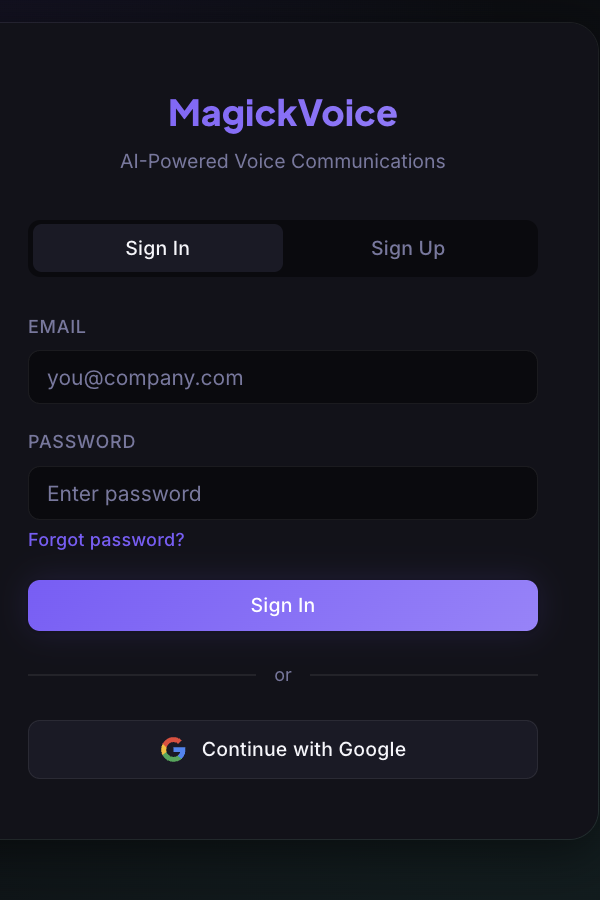
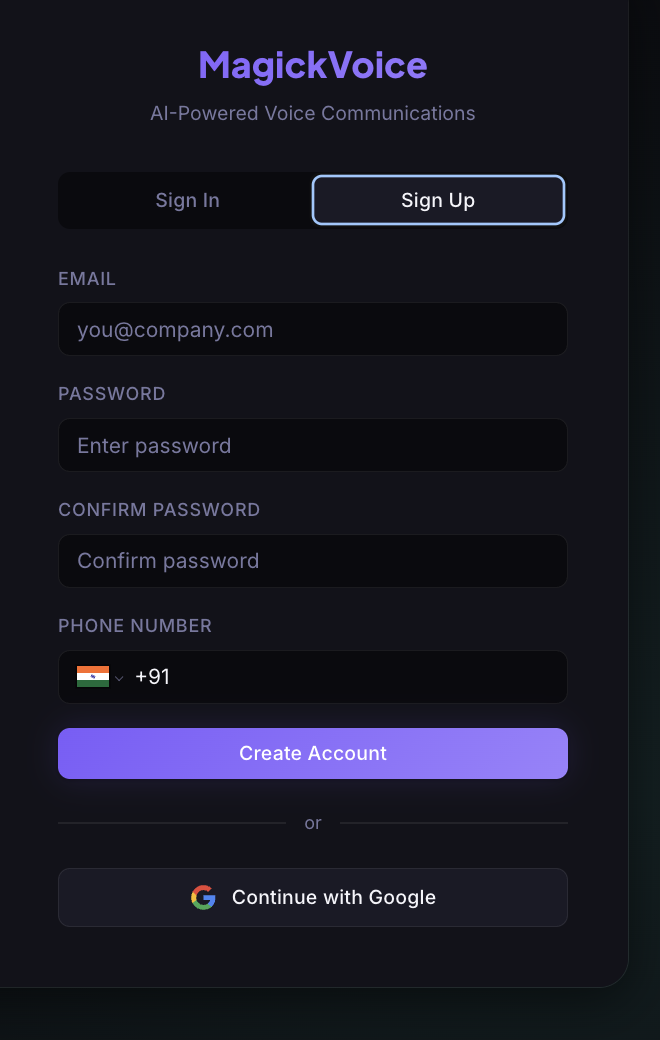
Sign in to an existing account or create one from the two tabs on the MagickVoice access page.
Audience: All users · Page address: /login
Common tasks
- Sign in with email and password
- Create an account with email, password, and an optional phone number
- Use Google sign-in when your organisation supports it
How to use this page
1. Sign in with email and password
Open your existing MagickVoice workspace.
- Keep the Sign In tab selected.
- Enter the email address in Email and the matching account password in Password.
- Select the lower Sign In button below the fields. The tab button at the top only changes the form; it does not sign you in.
- If the account has not been verified, MagickVoice opens Verify your email. Complete that guide before trying to work in the product.
- If a temporary network error appears, wait briefly and select Sign In once more. Do not change the credentials unless the page specifically says they are incorrect.
2. Create a new account
Register an email-and-password account, then move to email verification.
- Select the Sign Up tab.
- Enter your email address in Email. The browser focuses this field and explains the problem if the address is blank or not in email format.
- Enter a new password in Password, then enter exactly the same value in Confirm Password. Both fields are required.
- Phone Number is optional. If you add one, choose the correct country first and enter the number in that country format; the field displays the completed international number.
- Select Create Account. While the request is running, the button changes to Please wait... and the Google option is temporarily disabled.
- After a successful request, sign in with the same email and password if MagickVoice leaves you on the access page. It then opens Verify your email.
- If the first request shows a network error, wait and try signing in before submitting the signup form again. An email-already-in-use message means the account was created and you should use the Sign In tab.
Tips and troubleshooting
- If a verification message is delayed, check spam, promotions, and any alternate inbox tied to the invite.
- Use the same sign-in method your team used when inviting you; switching methods can create a separate account.
- The access page also offers Continue with Google. Use the method your organisation expects, otherwise you can create a separate account for the same person.
- The page can return a temporary Firebase network message even when the account action completed. Check the next state before repeating an action.