MagickVoice Help Center — Overview
Dashboard
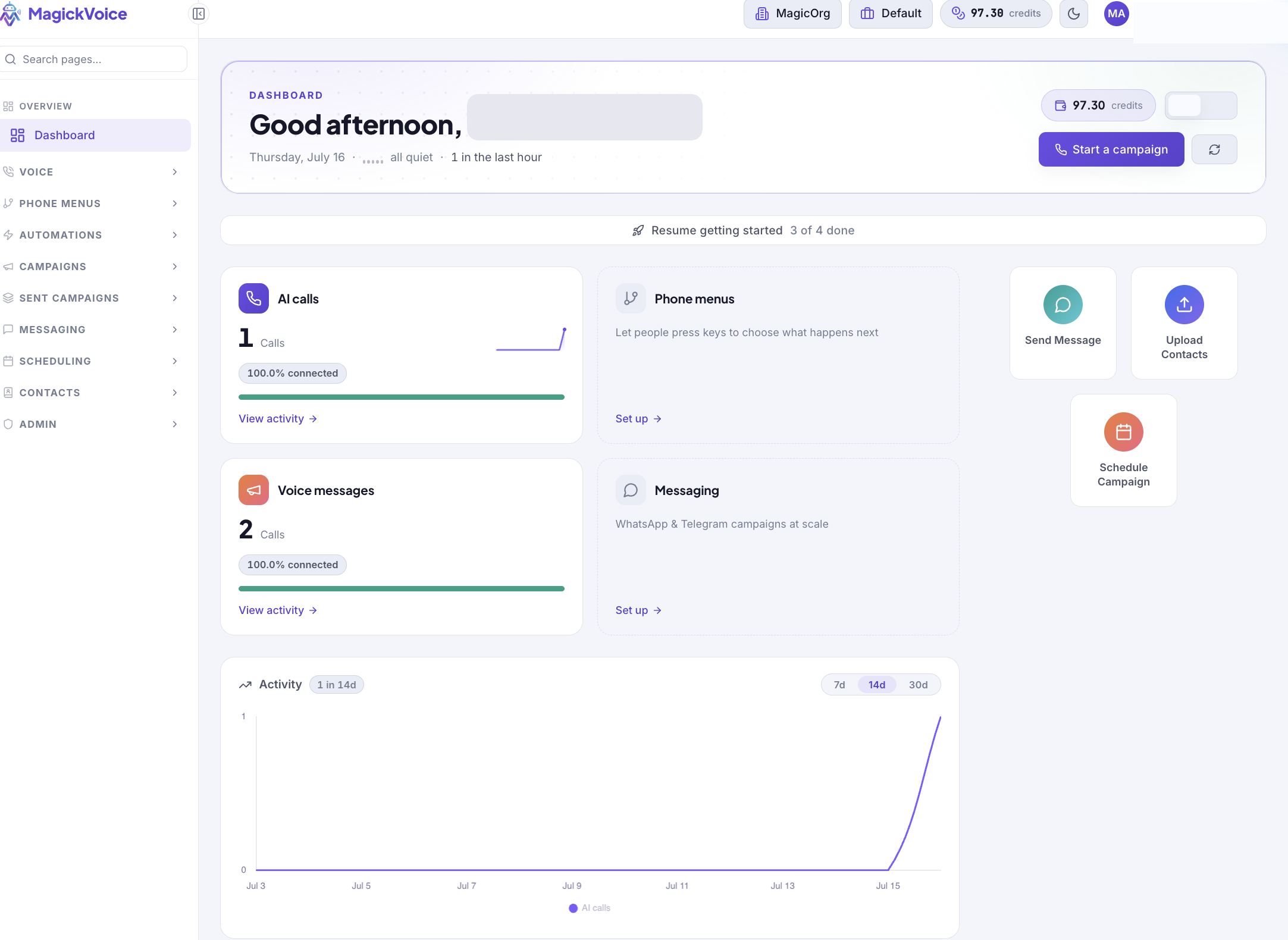
Use Dashboard as the workspace home page for credit balance, first-run setup, quick actions, and links into every MagickVoice channel.
Audience: Workspace operators and admins · Page address: /app
Common tasks
- Check the active organisation, workspace, and credit balance
- Start a first call or browse call scripts
- Complete the Getting Started checklist
- Open messaging, contacts, scheduling, and channel setup pages
How to use this page
1. Orient yourself on Dashboard
Confirm you are in the right workspace and choose the correct starting point.
- Open Dashboard from Overview in the left navigation.
- Read the organisation and workspace controls in the top bar, then check the credit balance beside them.
- Use the welcome panel for a direct first action: select Make your first call to open the call form, or Browse call scripts to choose or create an AI call script.
- Leave the Page guide expanded the first time you use Dashboard. It explains how credit balance, activity, and channel cards relate to the rest of MagickVoice.
- Use the profile control in the top-right corner only for account-level actions. It is separate from the workspace selector and channel navigation.
2. Complete the Getting Started checklist
Set up the minimum pieces needed to run a useful first voice workflow.
- Find Getting Started below the Page guide. The progress label shows how many of the four tasks have been completed.
- Select Go next to Create a call script to define what the AI should do during a call.
- Return to Dashboard, then select Go next to Upload a contact list to import the people your campaigns or calls will reach.
- Select Go next to Make your first call when you are ready to test the script with a real recipient.
- Use Schedule a campaign when the first call works and you want to plan a group of calls for a future time.
- Do not dismiss the checklist while you still need its links. Dismiss hides the guide; it does not finish or undo any setup task.
3. Use a quick action or channel card
Jump directly into the type of work you want to do without navigating through multiple menus.
- Use Send Message to open the messaging workflow, Upload Contacts to open contact-list import, or Schedule Campaign to plan a future campaign.
- Use the AI calls card to start voice-call setup, Phone menus to build a press-a-key menu, Voice messages to prepare an announcement, or Messaging to connect a supported message channel.
- After choosing a card, use the destination page for detailed configuration. Dashboard is a launch point, not the place where you enter all campaign or call settings.
Tips and troubleshooting
- Treat dashboard numbers as a starting point, then open the linked page for row-level detail.
- Use the dashboard after major campaigns to spot failed calls, low balance, or pending setup work quickly.
- The credit balance updates as calls start and finish. Open the Credits page from the balance when you need to review or add credits.
- Channel cards are shortcuts to detailed records and setup pages. Use them to narrow the task, then continue in the linked feature area.
- If the welcome panel or checklist is hidden, Dashboard still remains the same home page; use the left navigation to reach Calls, Call scripts, Contacts, Scheduling, and Messaging directly.